No Suitable Graphics Card Found Terraria Complete Fix Guide
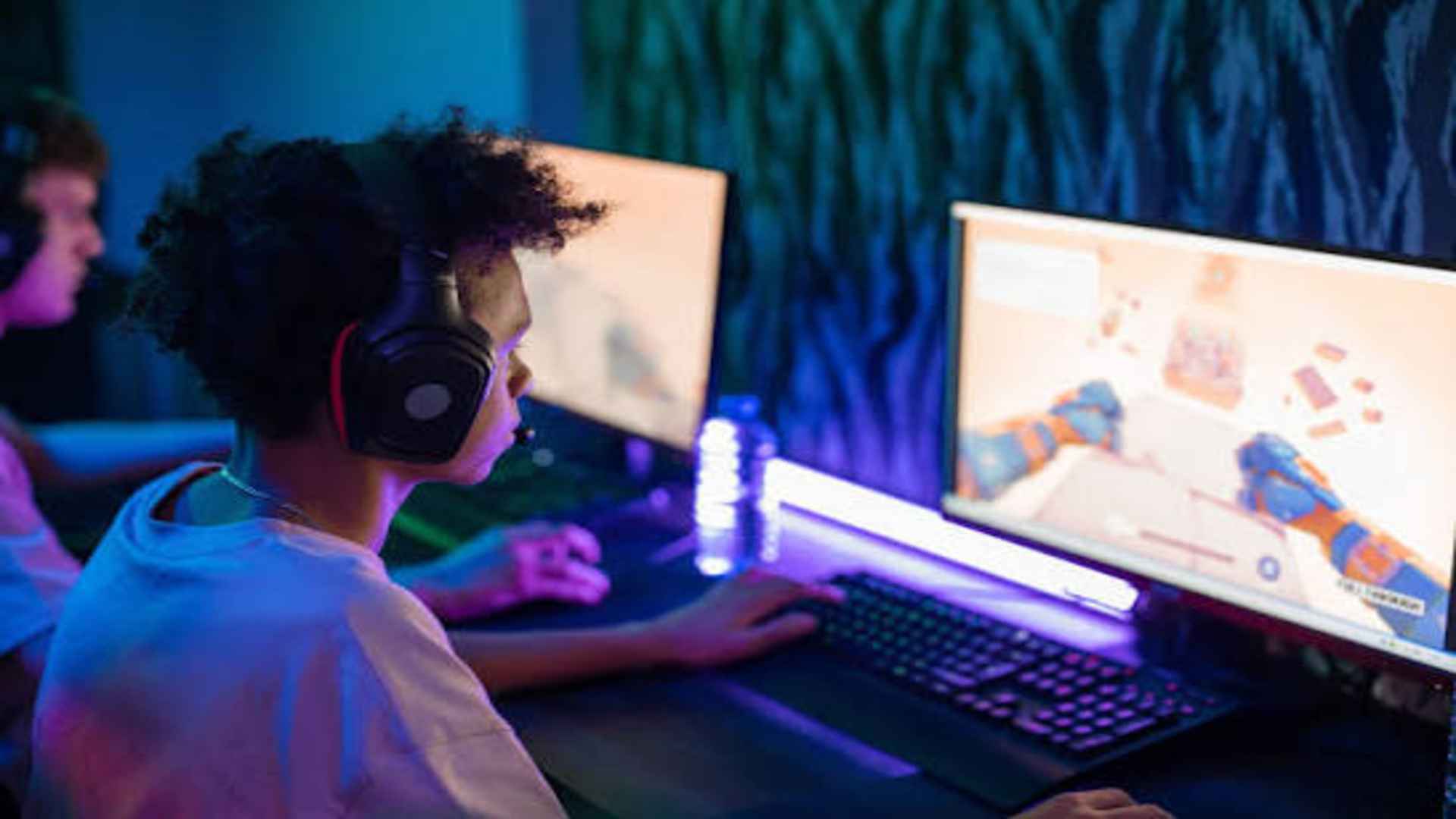
Encountering the notorious error message stating that no suitable graphics card could be found can immediately disrupt your plans to explore the massive sandbox world of Terraria. This frustrating technical barrier typically manifests during the game's startup sequence, suddenly preventing the application from initializing its rendering engine. Understanding the underlying drivers and software dependencies behind this hardware miscommunication is the first step toward restoring your access to the digital underworld.
Understanding the XNA Framework and Direct3D Issues
Terraria is built utilizing the historic Microsoft XNA Framework, which requires direct compatibility with specific legacy rendering protocols to draw textures correctly. When the game throws this specific graphical exception, it usually implies that your operating system cannot establish a proper connection between the software engine and a Direct3D device. This disconnection often occurs after major operating system upgrades or unexpected system background modifications.
To resolve the underlying software platform limitations, players frequently need to manually reinstall the runtime libraries that the game relies upon for configuration. Re-installing the essential packages ensures that your system possesses the requisite environment files needed to translate game code into visual elements. Ensuring these core dependencies are fully functional will allow the application to recognize your integrated or dedicated rendering hardware without further interruption.
Updating Graphic Drivers and Resolving Driver Mismatches
Outdated or corrupted graphics software stands as one of the primary culprits behind this rendering device initialization failure. Modern operating systems sometimes install generic display drivers during background maintenance cycles, which might conflict with specialized gaming software configurations. Accessing the official portal of your hardware manufacturer allows you to download the most stable, dedicated driver package for your computer.
If you have recently adjusted your system configurations, running a clean installation of your graphics software will completely wipe out conflicting configurations. You can also visit external documentation platforms by checking web resources to acquire additional step-by-step guidance on advanced driver deployment strategies. Clearing out the redundant or broken software cache ensures that your physical video hardware communicates efficiently with the DirectX interface during resource-heavy applications.
Configuring Dedicated GPU Priority and Resolution Settings
Gaming laptops equipped with hybrid processing architectures often trigger this problem by erroneously routing the game execution path through the low-power integrated chipset. Because the game engine struggles to identify appropriate hardware capabilities on basic display outputs, manually enforcing dedicated performance modes is highly recommended. You can adjust these preferences easily by navigating through your display control center or the dedicated graphics settings interface.
Additionally, improper scaling properties and corrupted local configuration profiles can trick the software into requesting unsupported display variables upon launch. Deleting the local configuration files located within your document storage folder forces the game to generate factory defaults during the next startup sequence. This simple refreshment reset eliminates incompatible baseline parameters that prevent the rendering engine from mapping out your physical hardware landscape.